


A formula can look correct and still point to the wrong period, omit a driver or break a model’s logic. In a large workbook, checking every link manually is slow. If you’re looking for excel shortcuts auditing formulas, focus on the tools that help you trace dependencies and inspect calculations. Shortcuts can speed up the review, but they don’t prove a model is sound.
Excel’s built-in formula-auditing tools can help you trace dependencies across sheets and compare similar formulas. A repeatable process makes the difference: navigate to related cells, inspect formulas and investigate unexpected outputs step by step.
This guide covers practical keyboard shortcuts and Excel tools for tracing precedents and dependents, displaying formulas, evaluating calculations and monitoring key cells. You’ll learn how to use them to spot inconsistent references and check financial models more efficiently. The aim is simple: fewer manual steps and clearer audit checks.
A forecast can produce a plausible answer even when one formula points to the wrong period or uses an inconsistent assumption. Formula auditing helps you test the connections behind that answer. Formula auditing is the process of tracing, comparing and testing formulas against a model’s intended logic. It can reveal calculation and reference errors, but it cannot prove that the inputs or business assumptions are correct.
In financial modelling, formulas link assumptions and calculations across schedules. A change to an operating driver can feed through the income statement, cash flow, balance sheet, debt schedule and valuation. An error in one formula may therefore affect several downstream outputs.
Check whether a formula refers to the intended cells, applies the right calculation and follows the same pattern as comparable periods or lines. Separately, check whether the source assumptions are supported and whether the business logic makes sense. A shortcut might reveal a link to the wrong revenue driver, but it cannot establish whether the revenue forecast itself is reasonable. A plausible output is not proof that every formula is correct.
Consider a hypothetical forecast with revenue of £100m in the prior year and £110m in the forecast year. If the COGS assumption rises from 60% to 62% of revenue, forecast COGS should be £68.2m (£110m × 62%). A copied formula that still applies 60% gives £66m, overstating EBITDA by £2.2m, all else equal. That difference can carry into cash flow, debt repayment and DCF valuation.
Consistent formula structure makes this exception easier to spot. Compare the forecast calculation with adjacent periods and the stated driver, then investigate any variation. Use Excel shortcuts to speed up navigation, but verify the logic and document each exception you find.
A formula can look consistent while pointing to the wrong period or driver. These Excel shortcuts for auditing formulas help you inspect calculations and trace their immediate links. Microsoft’s Excel keyboard shortcuts reference lists shortcuts by platform. Check it for the keys that apply to your version and keyboard settings.
Compare equivalent periods or rows, but don’t assume every variation is a mistake. A different formula may reflect a genuine change in the model’s structure or assumptions. Confirm the difference against the model logic before changing it.
On Mac, select Formulas, then choose Trace Precedents or Trace Dependents. These commands show direct links, not the full logic of a complex workbook. For example, if B4 contains =B2-B3, tracing precedents from B4 reveals B2 and B3. Tracing dependents from B2 identifies B4. Repeat the process to follow a chain. Cross-sheet or complex links may need additional tracing and formula inspection.
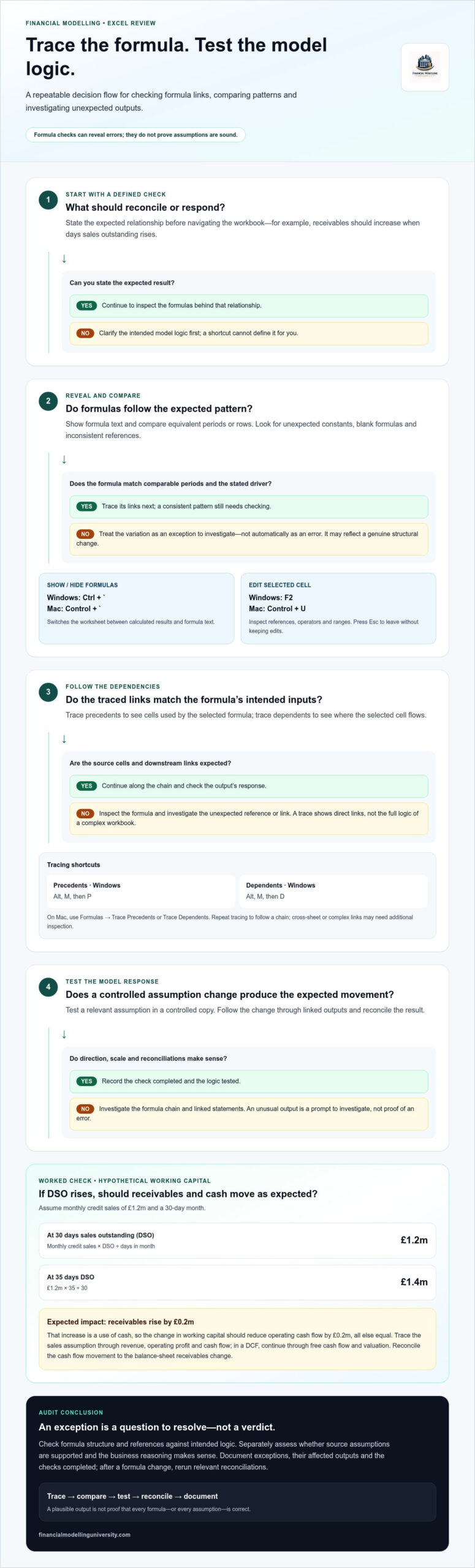
Don’t start by clicking through cells at random. Define the check, then use Excel shortcuts for auditing formulas to follow a clear route from driver to output:
Hypothetical working-capital check: Assume monthly credit sales of £1.2m and a 30-day month. Receivables at 30 days sales outstanding (DSO) are £1.2m: £1.2m × 30 ÷ 30. If DSO rises to 35 days, receivables should be £1.4m: £1.2m × 35 ÷ 30. The £0.2m increase is a use of cash, so the change in working capital should reduce operating cash flow by £0.2m, all else equal.
Trace the sales assumption through revenue, operating profit, cash flow and, in a DCF, free cash flow and valuation. Check each link, then reconcile the cash flow movement to the change in balance-sheet receivables. A formula exception is a difference worth investigating, not a confirmed modelling error until you test it against the model’s intended logic.
Reconcile linked statements and test whether changing an assumption produces the expected direction and scale of movement. A circular reference or unusual output is a prompt to investigate, not proof of an error. It may be intentional or reflect a modelling convention. Record the cause, affected outputs and checks completed. After a formula change, rerun the relevant reconciliations and sensitivities, then confirm that the model still behaves as intended.
Excel shortcuts for auditing formulas can speed up navigation, but a reliable review also needs structure. Native tools are often enough to investigate a specific formula or check a compact schedule. In a larger workbook with linked statements, scenarios or debt schedules, document what you checked, what you found and which outputs may be affected.
After changing a formula, trace its impact and rerun the checks that depend on it. A correction to a working-capital calculation, for example, may affect cash flow, borrowing and valuation. Don’t assume that fixing one cell resolves every downstream issue.
Use consistent layouts, clear labels and repeatable formulas so equivalent periods or business segments are easier to compare. Keep review checks distinct:
Record each exception with its location, explanation, impact and resolution. This creates a review trail and helps another modeller understand which differences are intentional.
Build the habit on a model you can follow end to end. In a DCF, trace operating assumptions through cash flow and valuation. In an LBO, follow debt balances, interest and repayments through to returns. FMU course materials include downloadable Excel models or templates and practical exercises that you can use to practise these checks.
Connect formula review to the purpose and structure of the model you’re building. Practising on complete finance models lets you trace assumptions through linked schedules and outputs.
Excel shortcuts for auditing formulas can help you move quickly from an output to the formulas and assumptions behind it. Use them to trace links, compare equivalent periods and investigate exceptions, then test whether the result matches the model’s intended logic. A repeatable review also means documenting findings and rechecking affected outputs after formula changes.
Shortcuts are most effective when the workbook is structured for review. Keep inputs clear, formulas consistent and key reconciliations visible. That discipline helps you assess a DCF, operating model or LBO schedule without mistaking a plausible number for a verified one.
Build these habits by practising on complete finance models. FMU’s live catalogue includes LBO Financial Models and DCF & Valuation, with practical exercises and downloadable Excel models or templates in the course materials. Explore FMU’s financial modelling courses and put your audit process into practice.
Start with commands that reveal and inspect a calculation, then trace its links. In many desktop versions, Ctrl+` toggles formula display and F2 edits the selected cell on Windows. Use the Formulas tab to trace precedents, the cells feeding a formula, or dependents, the cells using it. Confirm the keys for your platform and version in Microsoft’s current documentation.
Select the formula cell, then use Excel’s Trace Precedents command to show the cells feeding its calculation. Follow those links back through the relevant schedule, checking assumptions and cross-sheet references along the way. Compare the formula with equivalent periods, but investigate differences before treating them as errors. Finish by checking that the result reconciles with the model’s intended logic and related outputs.
No. Shortcuts make it easier to reveal formulas, trace dependencies and inspect calculations, but they can’t confirm that assumptions are reasonable or that business logic is appropriate. Check inputs separately, reconcile linked statements and test whether key outputs respond as expected when assumptions change. Treat an unusual result as a reason to investigate, not as proof of a modelling error.
Inspect the formulas in equivalent cells across periods and compare their references, calculation structure and underlying drivers. A difference may be intentional, such as a one-off cost or a changed assumption, so check the model logic before correcting it. If the variation is valid, document the reason. Then confirm that the resulting figures still reconcile with linked schedules and outputs.
Some shortcuts differ between Windows and Mac, and behaviour may also depend on Excel version or keyboard settings. Don’t assume a key combination works identically across platforms. Check Microsoft’s current shortcut documentation for your version. If a shortcut is unavailable or behaves differently, use the corresponding command on Excel’s Formulas tab or ribbon. Confirm the result by inspecting the formula or traced links.