


When fixing circular references in excel, the first challenge is finding which formula completes the loop and deciding whether that loop is intentional. Excel’s warning rarely explains the full dependency chain. A quick formula edit may remove one cycle while leaving another behind, and enabling iteration too soon can hide an error rather than solve it.
A reliable approach starts by classifying the loop. This guide shows you how to find the cells involved, trace the formulas connecting them, and correct accidental circularity without disrupting the model’s logic. You’ll also see when iteration may be appropriate, such as interest calculated on an average debt balance, and how to test the result instead of treating Excel’s calculation setting as a fix.
Follow a disciplined sequence: locate, trace, repair or deliberately retain, then validate. That approach helps keep a three-statement or LBO model understandable when formulas link income, cash flow and debt. Whether you’re auditing an existing workbook or building a model, the aim is the same: calculations that work and logic another reviewer can follow.
Excel can display a circular reference warning without showing which formulas are connected or what the loop affects. Before changing calculation settings, identify the dependency and decide whether it reflects intended model logic. A diagnosis-to-validation process helps you correct the formula, or retain deliberate iteration, without losing sight of what the model is meant to calculate.
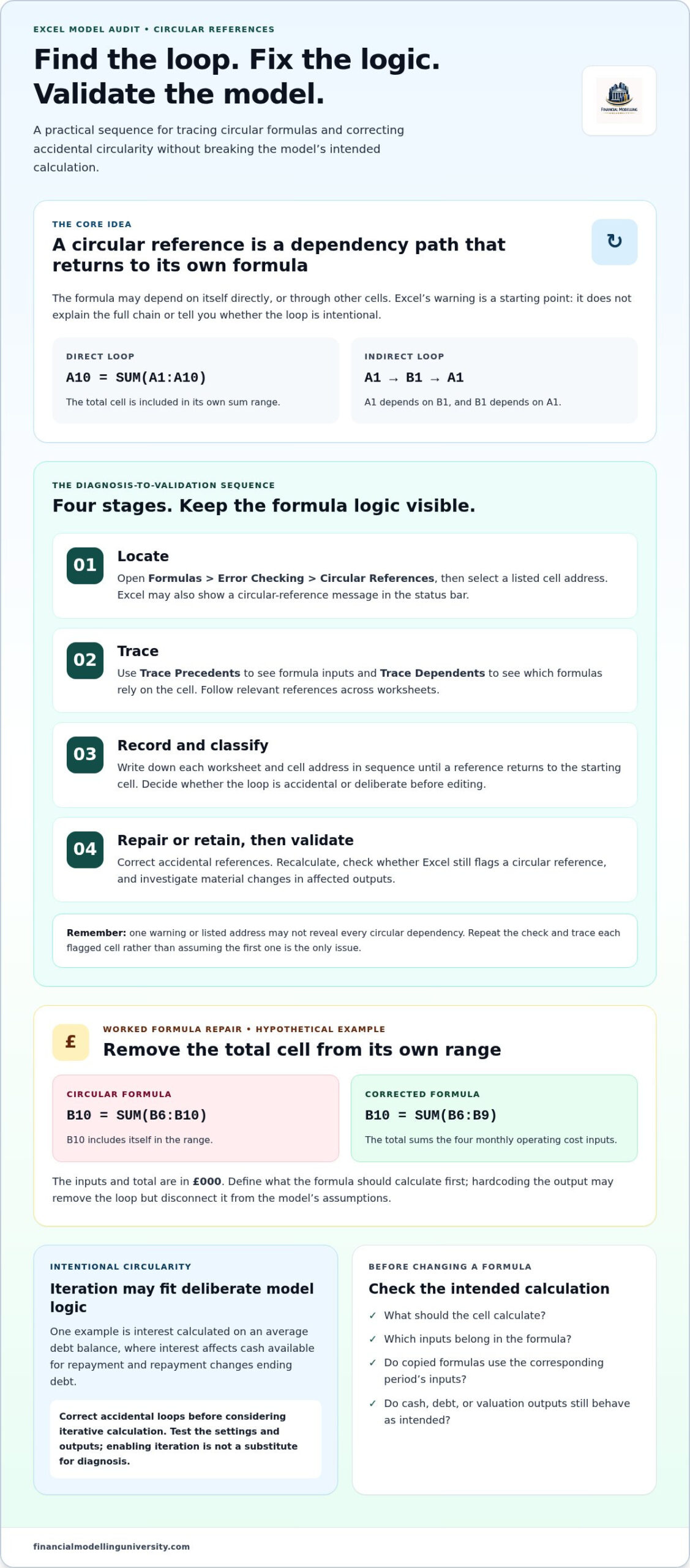
A circular reference occurs when a formula depends, directly or indirectly, on its own result. The issue is a dependency path that returns to the formula, rather than an ordinary formula error such as a mistyped cell reference.
For example, cell A1 contains =B1+1 and B1 contains =A1*2. A1 depends on B1, and B1 depends on A1, creating an indirect loop. By contrast, entering =SUM(A1:A10) in A10 creates a direct self-reference because the range includes the formula cell itself. The causes differ, even though both create circularity. For a broader overview of the concept, see this explanation of a circular reference.
In a three-statement model, an unintended loop can affect linked outputs. For example, a cash flow formula may use a balance that depends on net income, while net income already depends on that cash flow calculation. In an LBO debt schedule, interest expense can affect cash available for repayment, which then changes ending debt. If that circular calculation isn’t deliberate and controlled, cash, debt or valuation outputs may be unreliable.
Start by writing down what each formula should represent and whether its inputs should depend on its output. Then use Excel’s reference tools to locate the cells and follow the dependency chain, including across worksheets. Mapping the logic first helps distinguish a genuine model loop from a formula that simply points to the wrong cell.
Excel may flag a circular reference without showing the full chain behind it. Use the warning as a starting point, then trace and record each dependency before changing formulas. This is particularly useful in a financial model, where links between worksheets can conceal the formula that completes the loop.
If the flagged cell doesn’t make the full loop obvious, trace neighbouring formulas and links between worksheets. In a debt schedule, for example, interest expense may use average debt, while closing debt depends on cash flow after interest. The tracing arrows show formula relationships; they don’t establish whether those relationships are intentional or fix them for you.
To find an indirect loop, follow each formula input from the flagged cell until a reference leads back to the starting cell. Record the path, including the worksheet and cell address at each step. This gives you a clear basis for the next diagnostic step and helps keep formula changes focused. Apply the same method to each flagged cell rather than treating the first address as the only issue.
A formula edit should restore the model’s intended calculation, not simply silence Excel’s warning. Before changing a cell, state what it is meant to calculate and which inputs belong in the calculation. This helps you avoid replacing a formula problem with a hardcoded output that no longer responds to the model’s assumptions.
Hypothetical example: cells B6:B9 contain monthly operating costs in £000, and B10 is the total. If B10 contains =SUM(B6:B10), its range includes the total cell itself. The intended calculation is the sum of the four cost inputs, so change the formula to =SUM(B6:B9). The units remain £000.
Use the same reasoning to correct a wrong cell reference. If a working-capital formula should use revenue in B5 but instead points to its own output in B12, confirm the intended driver and timing before changing the reference. Hardcoding B10 or B12 might break the loop, but it also disconnects the output from the cost or revenue assumptions. Keep formula structure consistent across periods, and check that copied formulas refer to the corresponding period’s inputs.
After changing the formula, recalculate the workbook and check whether Excel still flags a circular reference. Compare the affected output with the prior result and investigate material differences. A changed total may be the correct result of excluding a self-reference, but it may also reveal another error or a mistaken assumption.
Trace the change through linked schedules. Check that the cost subtotal agrees with its component rows, operating profit flows correctly to the income statement, and cash flow and closing cash update as expected. If the formula feeds working capital or a debt schedule, verify those links too. In a DCF, confirm that revised cash flows flow through to valuation. Finally, change an input and check that the corrected formula responds as intended. This sequence is central to fixing circular references in excel without obscuring model logic.
In some financial models, a formula loop represents the intended economics rather than a mistake. Interest expense calculated on average debt, for example, can affect net income and cash flow, which in turn affect the ending debt balance used to calculate interest. Iterative calculation tells Excel to recalculate formulas in that loop repeatedly until the result meets its stopping condition.
Enable iteration only when you can explain why the loop belongs in the model, document the assumptions behind it and define how you’ll assess stability. Check your Excel version’s calculation options before changing settings. In desktop Excel, the setting is under File > Options > Formulas on Windows or Excel > Preferences > Calculation on Mac. You can set maximum iterations and maximum change, the threshold used to stop recalculating. The appropriate settings depend on the model, so don’t assume one combination suits every case.
Record the chosen settings and the reason for using them in the workbook. Iteration supports deliberate circular logic, but it can also allow an unrelated accidental loop to calculate, making an error less visible.
Recalculate, then vary relevant assumptions, such as the interest rate or debt repayment, and observe whether the outputs respond consistently. Check that interest expense, closing debt, cash flow and linked statements still reconcile. Confirm that results settle within the chosen calculation limits, and document any limitations a reviewer should understand.
Enabling iteration is not a substitute for tracing and correcting accidental loops. Use this sequence: identify the loop, confirm its purpose, document the logic, enable iteration only if the circularity is intentional, then test the model under changed assumptions. This keeps fixing circular references in excel focused on sound model logic rather than simply suppressing a warning.
A circular-reference warning is a prompt to strengthen how you design and review a workbook. Build clear formula logic, document any deliberate iteration, and make dependency checks part of your regular model review. This helps you spot issues earlier as assumptions and links between schedules change.
Use the same checks for every workbook: understand the formula’s purpose, trace its inputs, and test the outputs that depend on it. Fixing circular references in excel is one part of a wider process for building models that are easier to audit and update.
Financial Modelling University’s self-paced online courses include practical exercises and downloadable Excel models or templates. Explore Financial Modelling University’s financial modelling courses to build and check your modelling skills.
Yes. For example, Forecast!D12 might use an interest expense from Debt!D8, while that debt calculation depends on cash flow in Cash Flow!D15, which links back to Forecast!D12. Each formula can look reasonable in isolation. Inspect sheet links as well as formulas on the flagged sheet, and record the sequence to see where it returns to its start.
There may be another loop, or the revised formula may still rely indirectly on its own output. For instance, changing a debt schedule formula might remove one cycle while an interest calculation elsewhere remains circular. After fixing circular references in excel, check which addresses Excel lists and test the relevant inputs. A formula can look corrected yet remain connected through another row, named range or worksheet.
The warning can indicate that a loop exists without making its starting point clear. Check the Circular References menu and the status bar, then inspect formulas on related worksheets and nearby schedule rows. A recently edited formula that links two schedules which previously calculated independently may be a useful clue. Follow those references into the connected sheet and compare them with the intended model flow.
No. Excel may show a dialogue when a circular reference is first created, but later formula edits might not trigger the same pop-up. Don’t rely on the dialogue as your only check. After editing formulas, inspect the Circular References menu and status bar, particularly if you’ve copied formulas across periods or changed links between schedules. This can help catch a loop even when no new warning appears.